How Can We Help?
HoudiniEsq Back Office Check Writing
Back Office Check Writing
Generate and Print Outbound Checks
Introduction
. It serves as a secure, traditional, and traceable alternative to cash or electronic payments.
Use Case
- Client Trust Withdrawals: Return of remaining client trust funds or awards.
- Large Purchases: Buying a copier, staff bonuses, or covering any large business expenses.
- Service Payments: Paying contractors, repair workers, landscapers, or cleaners.
- Gifts and Donations: Providing monetary gifts, or giving to non-profit organizations.
- Tax Payments: Paying property taxes, particularly to avoid online processing fees.
Getting Started

This will open the Back Office panel. At the top of the area on the right is the BackOffice Write Checks button. Click it to open the Check Writing panel.
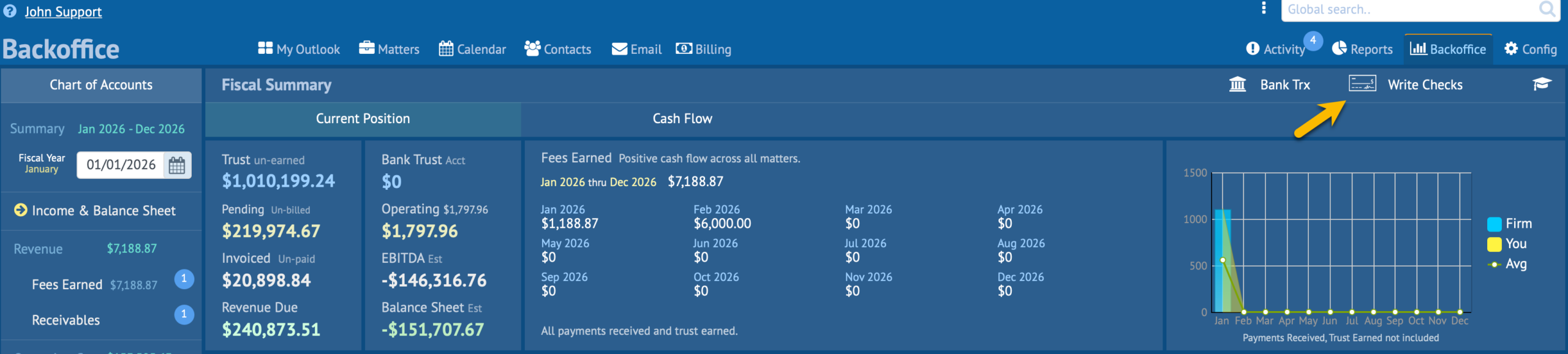
Click the Write Checks option to open the Check Writing Panel. The panel appears empty so to get started click the New button above the list panel on the left.

Here is where the rubber meets the road. The Check form is used to record outbound checks and print to check paper stock at your leisure.
The gray area on the right is the check template preview pane. This will be very useful in a moment and is explained below.
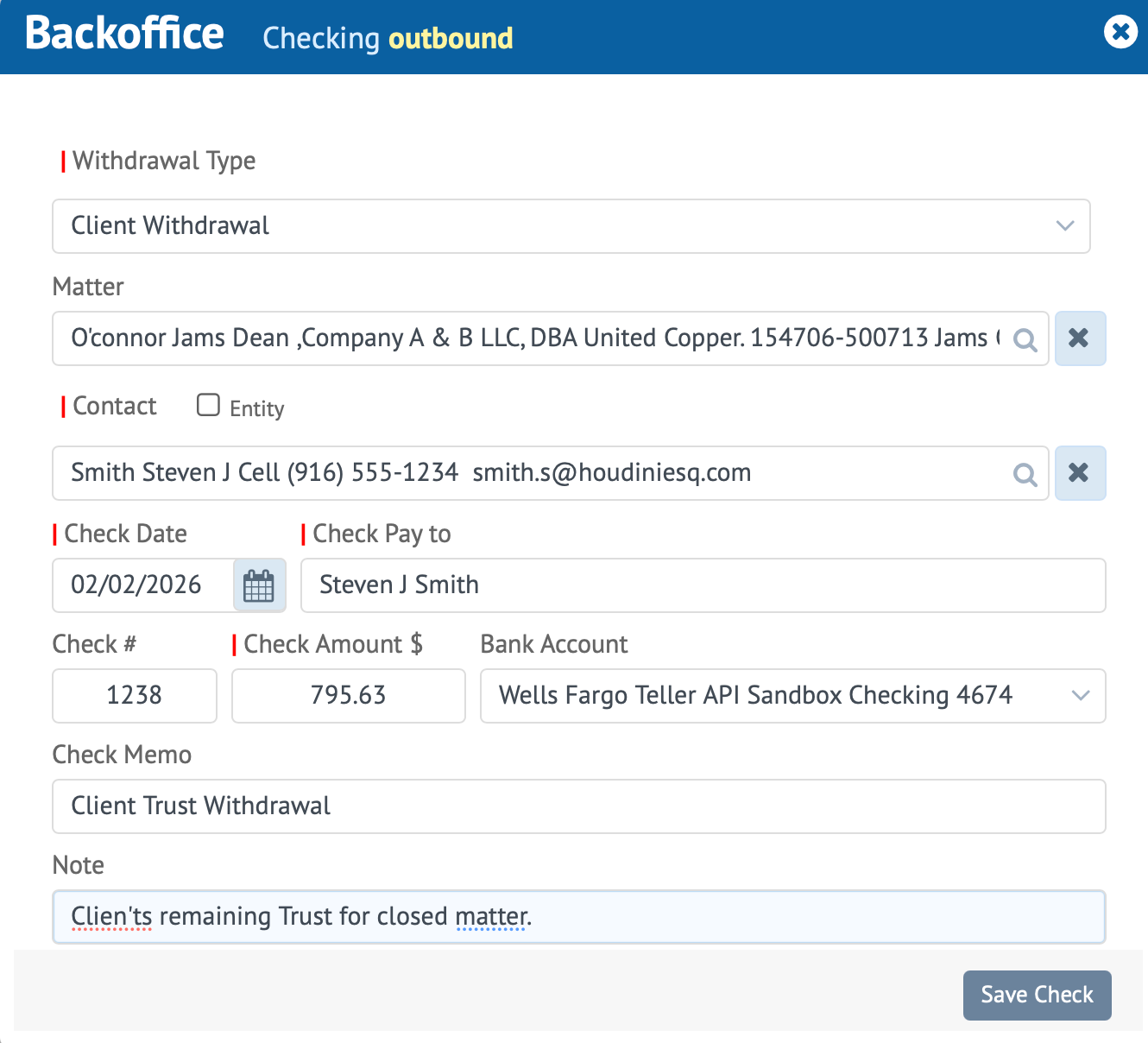
Check Form
Withdrawal Type Select the type of withdrawal the check is for, typically from your operating account. You can add a withdrawal type to the list of values by simply entering a new value in the field and then hit the enter key.
Matter Select the a matter for this check. This is optional but if you select a matter the Contact field below will be populated with only parties to the selected matter otherwise you will have to search and select a contact from the huge list of contacts in the system.
Contact Select a contact which is typically the payee in this instance, a individual or entity. To the right of the Contact field label is an Entity check box. Check this box if you want to use the Entitiy or Company name instead for the contact’s name on the check.
Check Date Select the date to be used on the check. The current date is the defalut.
Check Pay to This is auto filled in but you can change the value to something more suitable for a check if you need to. Technically it does not need to be the individual selected in the Contact field.
Check # Enter the check number for record keeping purposes. Although your print stock may already have the check number printed on the stock be sure to include it so in the future you will know what check number was used for a particular check. This is the best practice.
Check Amount Enter the amount of the check. Do not include a dollar or monies symbol since most bank check stock includes this on the bank check print stock.
Bank Account If you added one or more bank accounts to the system you will be able to select it from this dropdown field. Typically the bank the check will be drawn from. Adding the bank is optional but is best practice and good record keeping practice.
Check Memo Enter any text you wish to place in the memo field of the check.
Note This is a private field and is not printable. Use it to hold any notes such as the reason for the check.
The Check List
After entering your check data in the check form click the Save button to save and record the check. This will then place the check in the list on the left as depicted in the image below. You can repeat this process for the number of checks you wish to record and/or print.

The check list displays all the unprinted checks in the system. To see previously printed checks click the Archive icon above the list, the list you are viewing by default only lists checks that have not been printed but are queued to be printed in a single print job. On the right side of each record is a Queue checkbox indicating that the check is queued and ready to print. You can exclude a check from a print job by unchecking the queue checkbox of a record. After you run a print job the records that have the queue checkbox unselected will persist in this list until printed or deleted.
The Print Ribbon
The Print Ribbon is above the gray area in the right side of the panel.

Template Select a Bank Check Template.
Clear Queue button This button will clear all the check records that have Queue checked.
Print Button Click this button to start a print job for all the check records queued. It is important to note that when you print all records printed will disapear from the list and are placed under the archive icon above the check list on the left.
IMPORTANT When you print HoudiniEsq generates a PDF. You must then send the PDF to your printer, preferably a printer with bank check print stock loaded in one of the print papaer trays.
Test Checkbox Click this checkbox to include the check image as a background in the egnerated PDF. This is soley used to check the alignment of template fields and the target print stock. Never leave this enabled when you send the generated PDF to your printer since the background image is never needed when you actually print to bank check print stock. This will waste expensive ink so make sure it is disabled when you are ready to send the generated check data to your physical printer.
Graduation Cap Icon This is the help icon loads this documentation page you are viewing currently.
Exit Button Click this to leave the Check Writing panel and return to the BackOffice panel.
Bank Check Templates
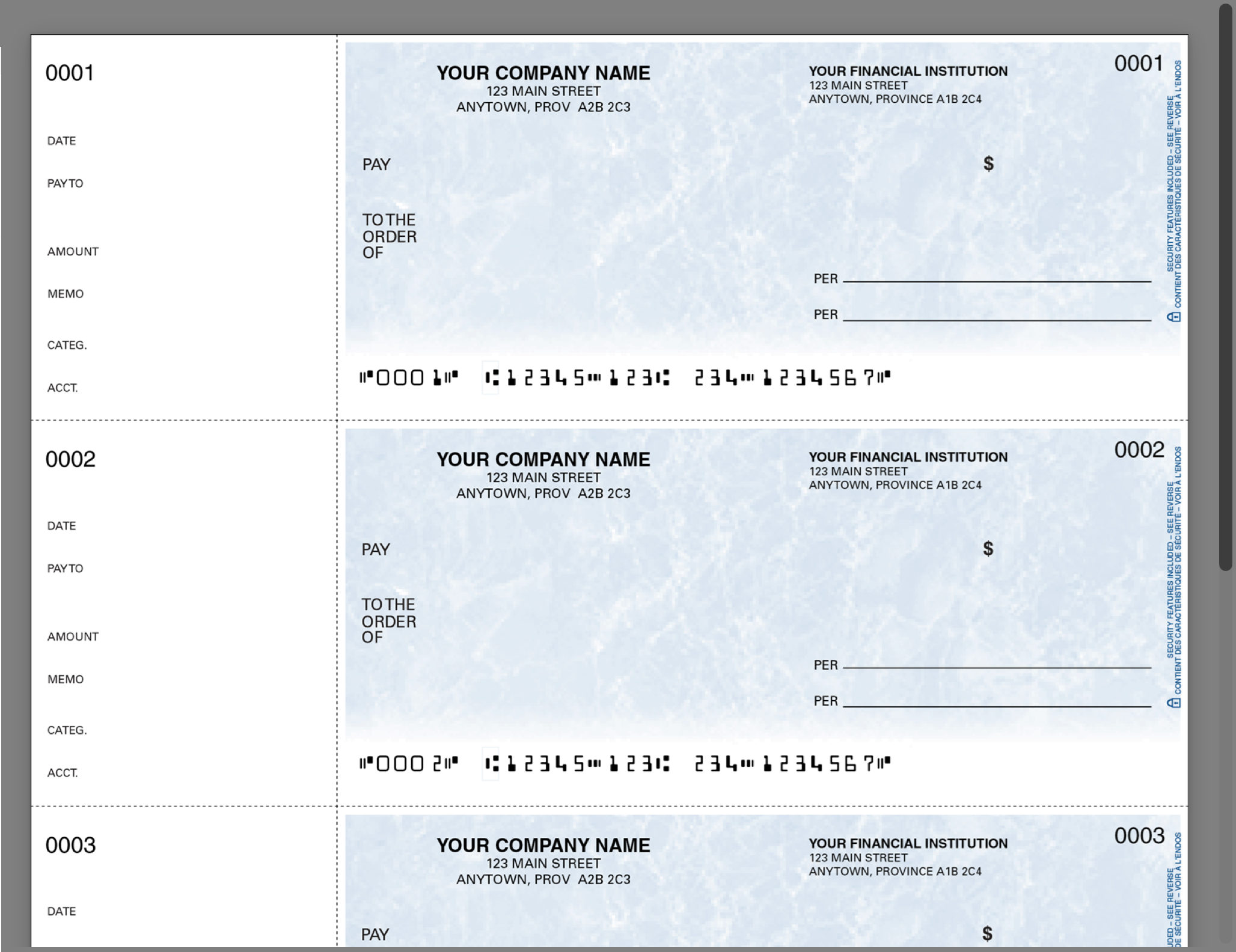
The HoudiniEsq Check Writing feature uses check templates to generate PDF files of the check which are then sent to you printer. HoudiniEsq includes three popular check templates that are compatible with QuickBooks check printing paper stock.
The three bank check templates included with HoudiniEsq are as follows.
esq-sys-check-voucher.odt
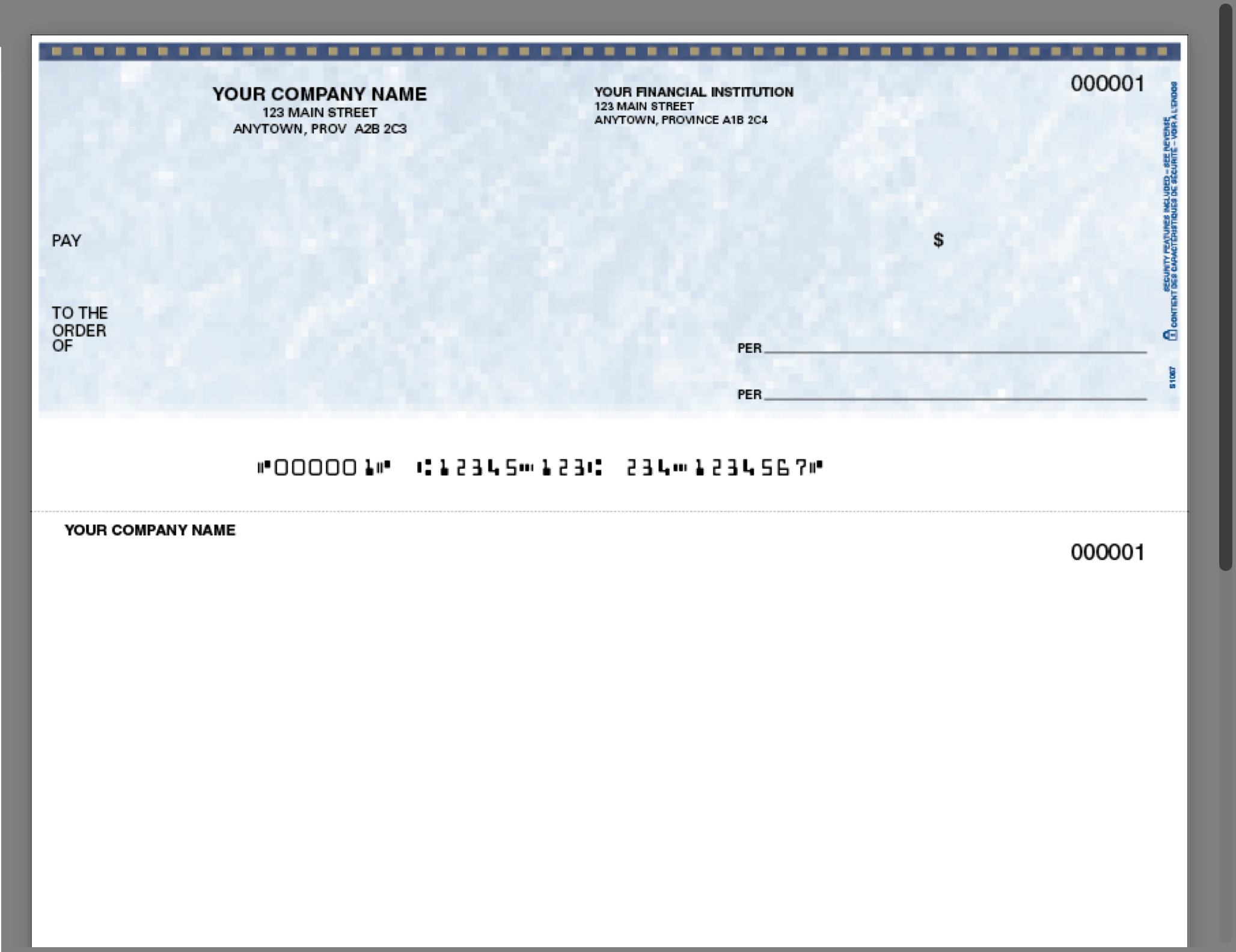
esq-sys-check-standard.odt
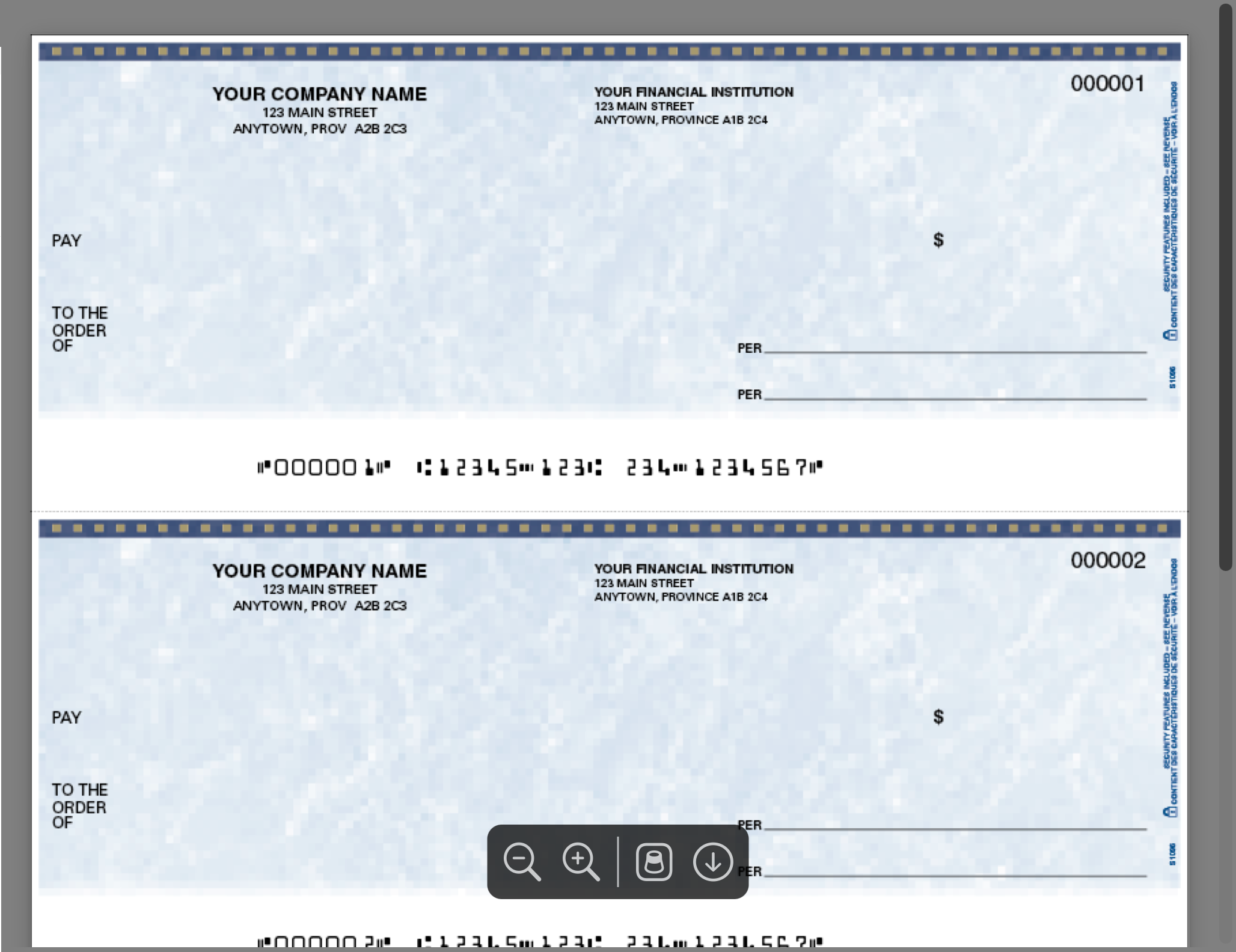
esq-sys-check-wallet.odt
Printing Checks
Once you have recorded all your checks you can choose to print any number of checks or leave the panel and return later to print.
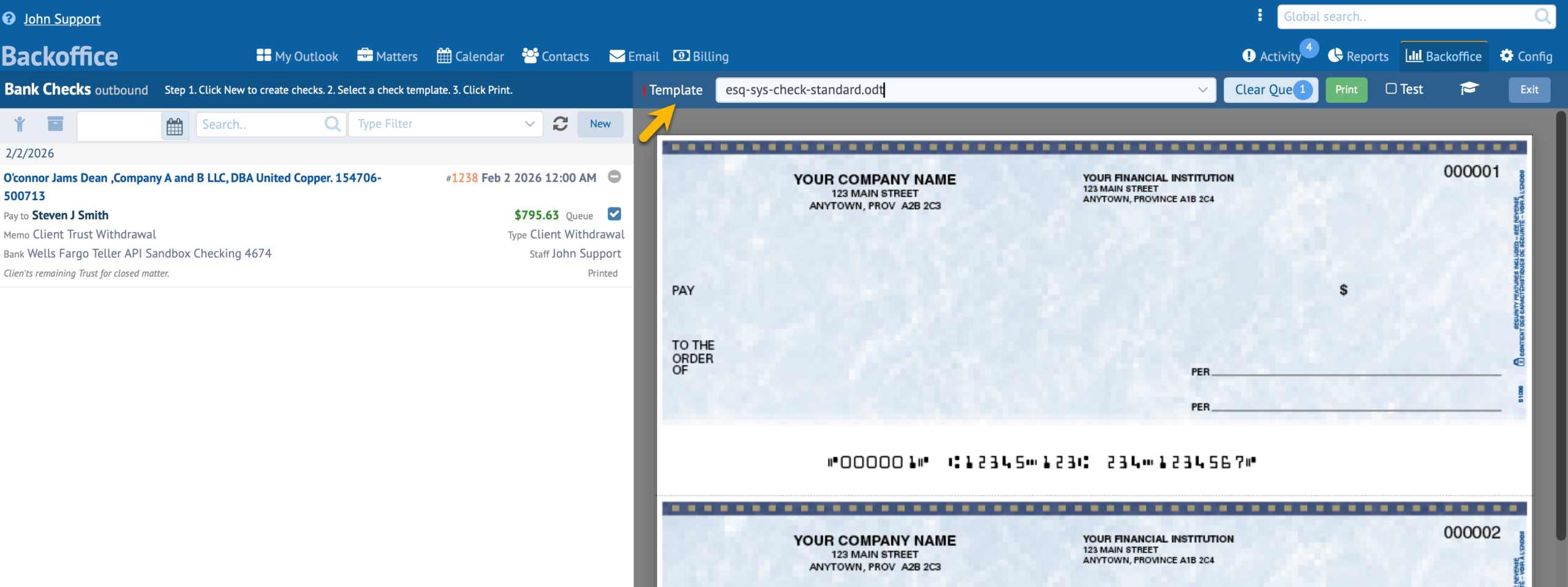
The first step when printing checks is to select a template from the template field above the gray area on the right. Selecting a Check Template displays a preview of the check print stock as depicted in the image below.
A Print Job includes one or more queued check records to be printed. When you click the Print button a PDF using the selected template will be generated for your review. When satisfied with the results send the PDF to a printer on your network that has bank check print stock that matches what is viewed in the preview pane.
Creating Your Own Bank Check Templates
We recommend that you use one of the existing HoudiniEsq bank check templates as your starting point. If you are an Admin you can download the templates from the Config tab under Document Templates. This way you will have all the HoudiniEsq document merge tokens necessary to build a new bank check template.
You will also need to download and install LibreOffice to edit these template as they are in the ODT format. LibreOffice is free and a very good document editor like MS Word.
Below is an image of LibreOffice and the HoudiniEsq Standard Bank Check Template. Notice there is no background image. This is because you will print on bank check print stock so no background is necessary. However it is best practice to include the background image of your check stock and save as a PDF file HoudiniEsq will display it in the preview pane. This is very helpful to see where on the print stock data will be printed. This helps you align the merge tokens properly.
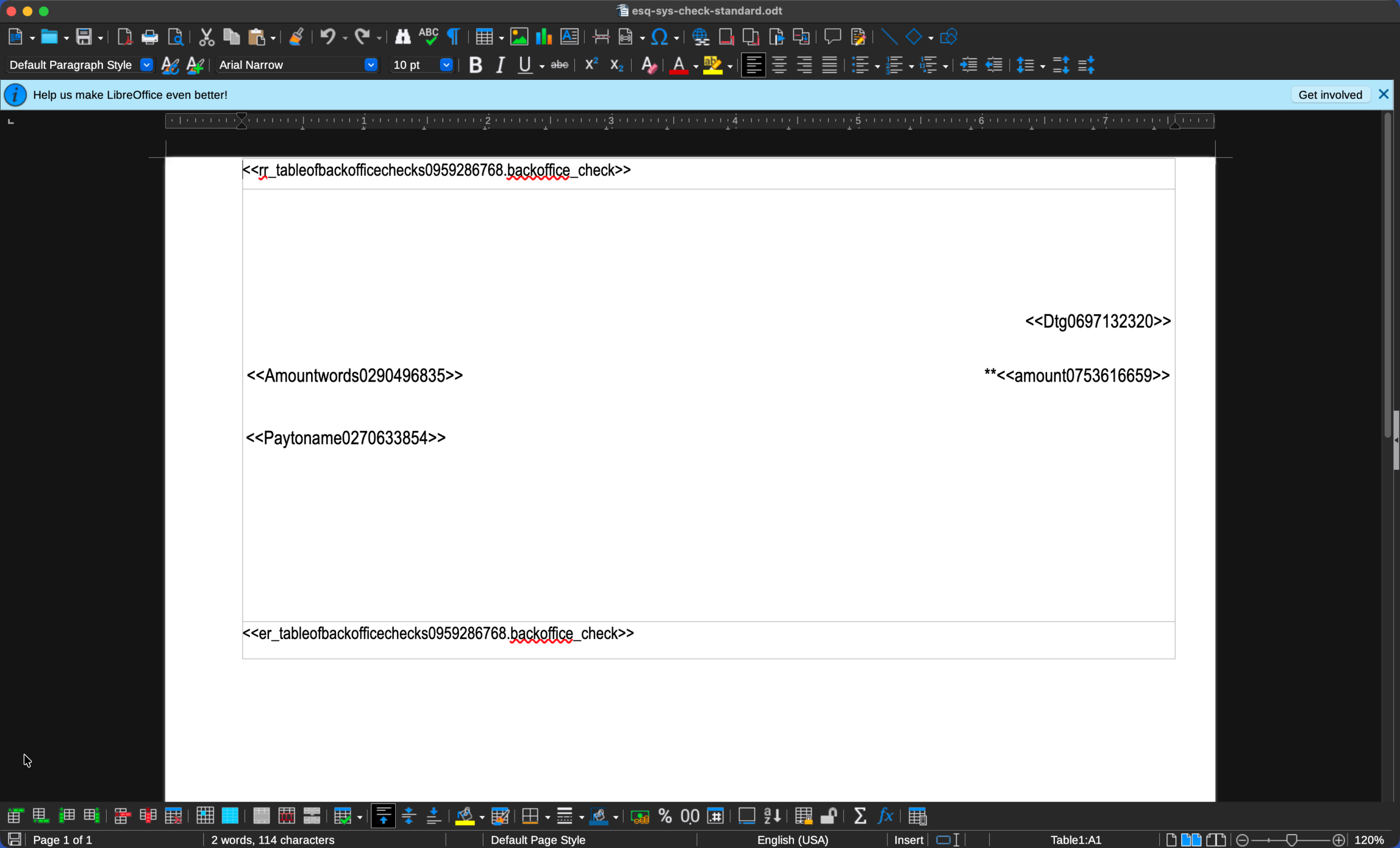
You should also save a copy of the template with a background image of the print stock and save as a PDF file. Upload this PDF. If it has the same name os your template HoudiniEsq will use this in the preview pane of the Back Office Check Writing preview pane as depicted below.